If the scripts work and as soon as you restart the server a few times they stop working, then you have a virus in your server. We can’t help you in that case.
Here you will find the solutions to common errors when using jaksam’s scripts due to the FiveM Escrow system. To verify if your error is caused by the FiveM asset escrow, you can simply restart the script and check both in F8 console and in server console (txAdmin) for errors.

How to know if my error is caused by the FiveM escrow system?

To understand if something in a script is not working because of the FiveM asset escrow system, do this:
1

Restart the script

Restart the script causing issues, using the command ensure your_script_name in txAdmin console or restarting the script the way you usually do.
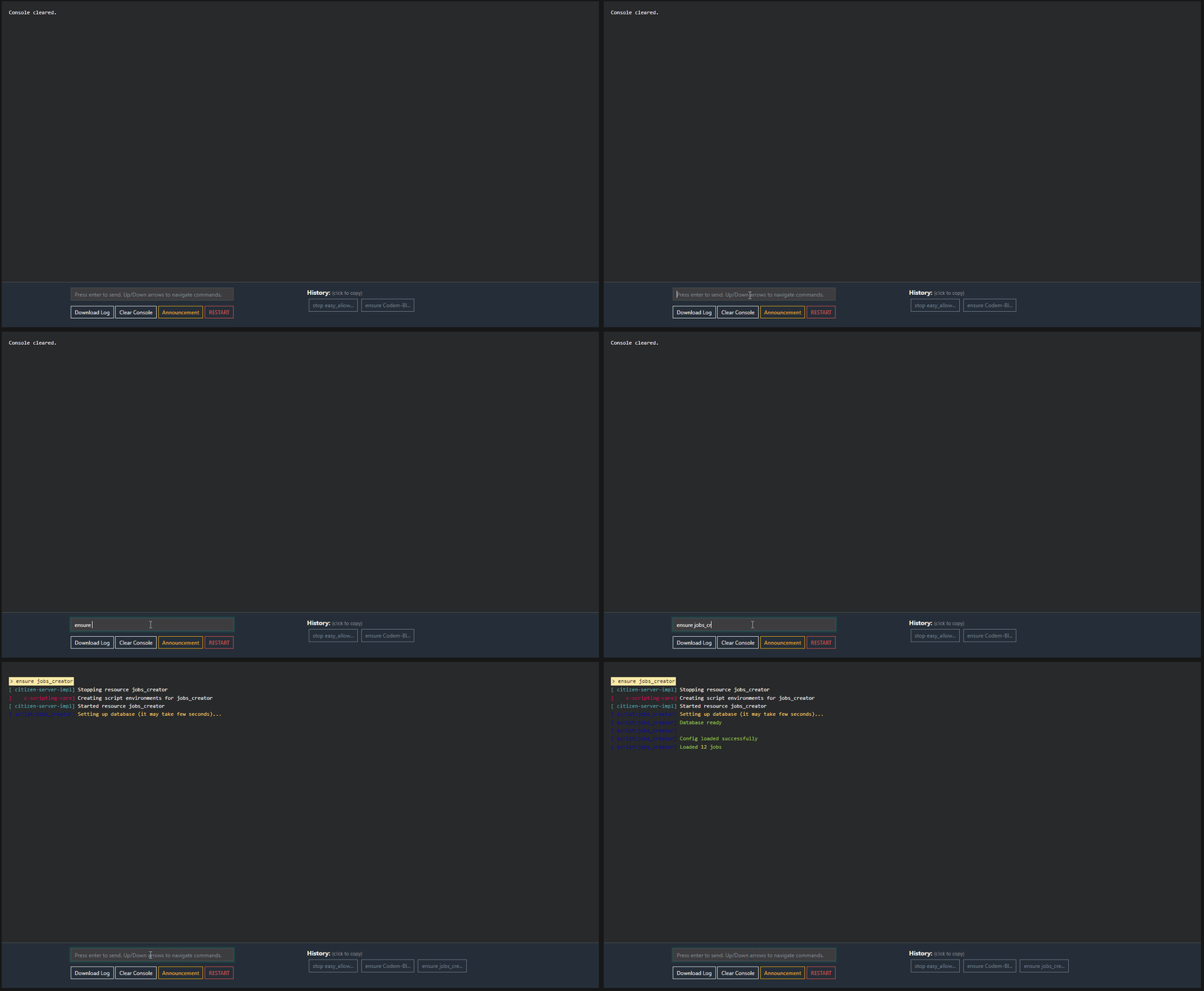
in-game F8 restart example

in-game F8 restart example

server console restart example

server console restart example

2

Check both consoles

Check the txAdmin console (server console) and the F8 in-game console, looking for errors.
3

Compare with known errors

If there is any error similar to the ones in the examples below, your issue is caused by the FiveM asset escrow system.

Examples of errors caused by the FiveM escrow system

Escrow error example

Solution: see Error parsing script below

Escrow error example

Solution: see Error parsing script below

Escrow error example

Solution: see Failed to verify protected resource below

Escrow error example

Solution: see You lack the required entitlement below

Common causes

These are the most frequent causes across all escrow errors below — check these first before going into the error-specific sections:
  • You’re transferring the script file by file to your VPS instead of uploading the .zip and extracting it after it’s already on the VPS
  • You’re using FileZilla (or your host uses it) — use WinSCP instead
  • The download was corrupted — try a clean, fresh install
  • You have a virus on your server modifying script files (very likely if nothing else fixes it)
Other general requirements:
  • Minimum server artifacts version 4752
  • OneSync has to be enabled
  • Use the correct license key, generated by the same account you used to download the script
It’s strongly suggested to read all sections below carefully, since these fixes are tested by many users and are supposed to work. If none of them helps, see What to do if nothing is fixing the errors.
You can find all of jaksam’s scripts here.
Error message example:

Possible reasons

In addition to the common causes above, this error can also happen if:
  • You may have to clear the server caches

How to verify my server version?

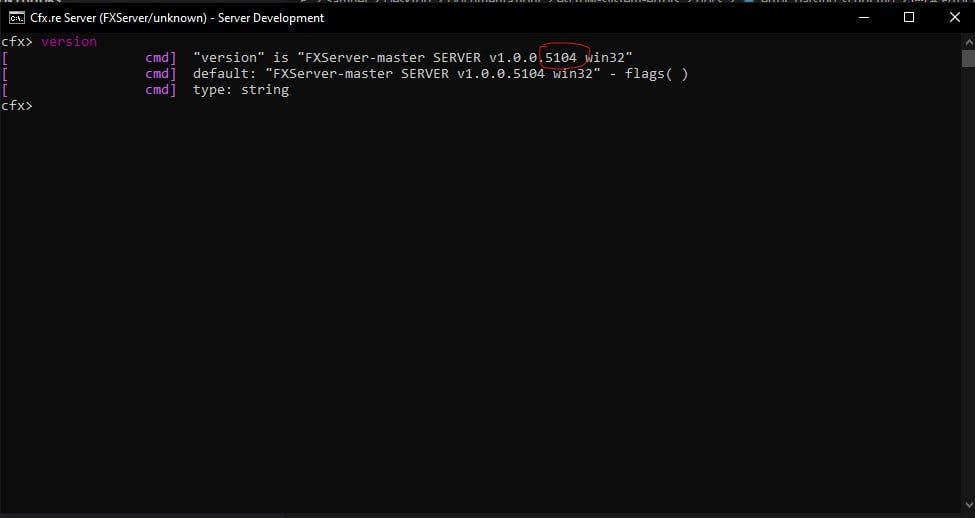
To verify what server version your server is currently using, use the following command in your FiveM server console: versionExample
version command example

How to update my server version?

To update your server version, download the new server artifacts and extract and replace them in your server folder.This is the official FiveM guide to update your server.

My server version is already updated, but I have the error

If you have the error even though your server version is not the issue, check Failed to verify protected resource below.
Error message example:

Possible reasons

In addition to the common causes above, this error can also happen if:
  • You don’t have an .fxap file in the script folder

Solutions

1

Re-download the script

Download the script again from FiveM Portal.
2

Upload with WinSCP

Upload the script using WinSCP instead of FileZilla.
3

Restart the server

Restart the server.
Error message example:

Reason

All scripts using the FiveM escrow system are linked to your FiveM account (the account you used on Tebex).In order to work, the script(s) require a server using a server key created by the same FiveM account you used on Tebex.

What is a server key?

  • The server key is generated in FiveM Portal
  • The server key is not a script key
  • A FiveM server can use only 1 server key
Example of a server key in server.cfg

How to verify my server key?

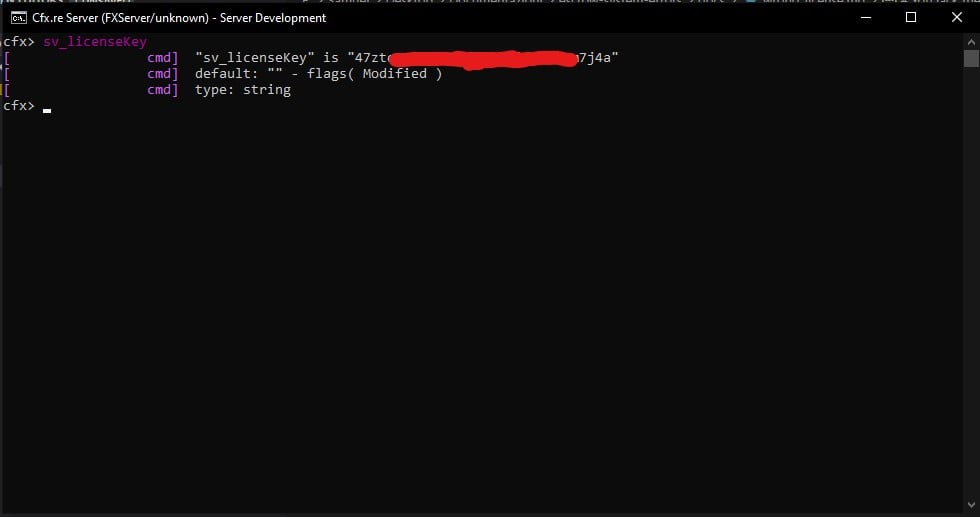
To verify what server key your server is currently using, use the following command in your FiveM server console: sv_licenseKeyExample:
sv_licenseKey example

How to verify if I am using the correct server key?

1

Get your server key

Use the command sv_licenseKey in your FiveM server console.
2

Note the server key

Take note of the server key you are currently using.
3

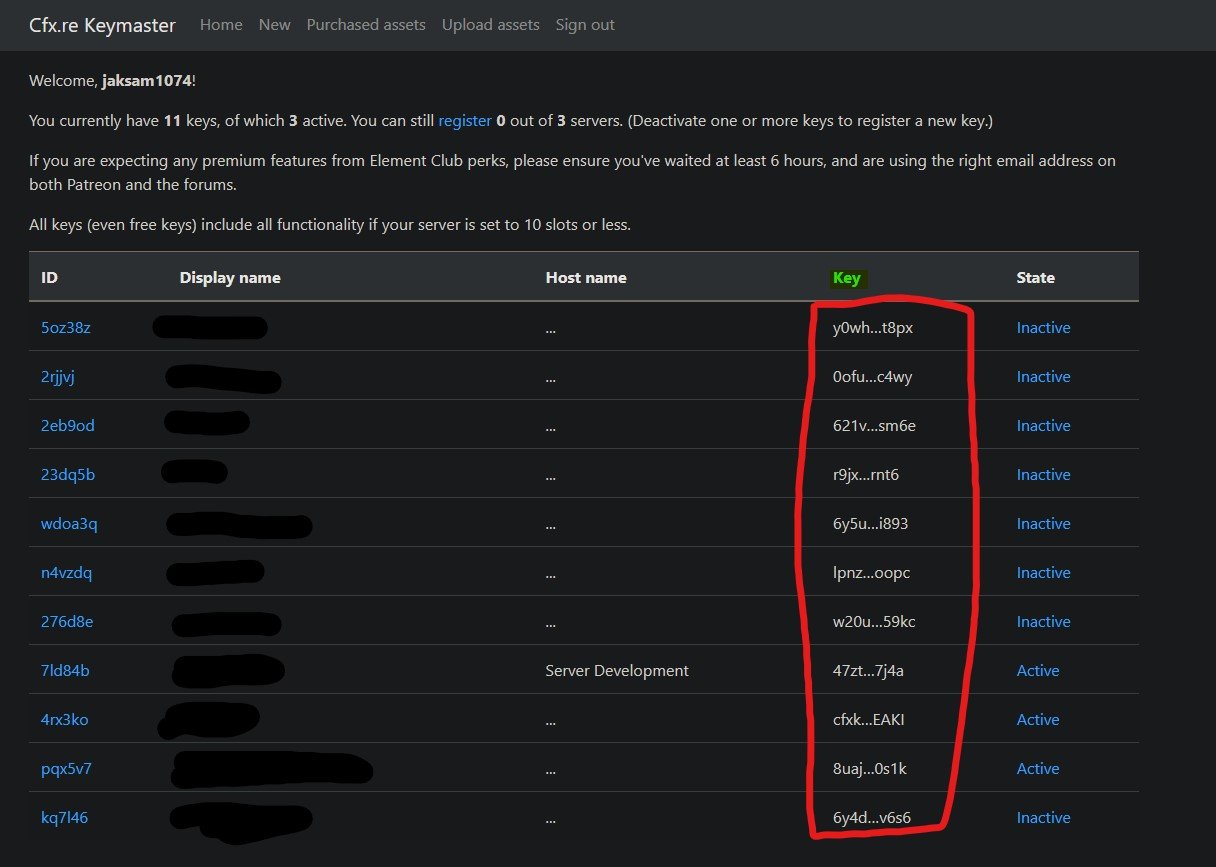
Open FiveM keymaster

4

Verify script ownership

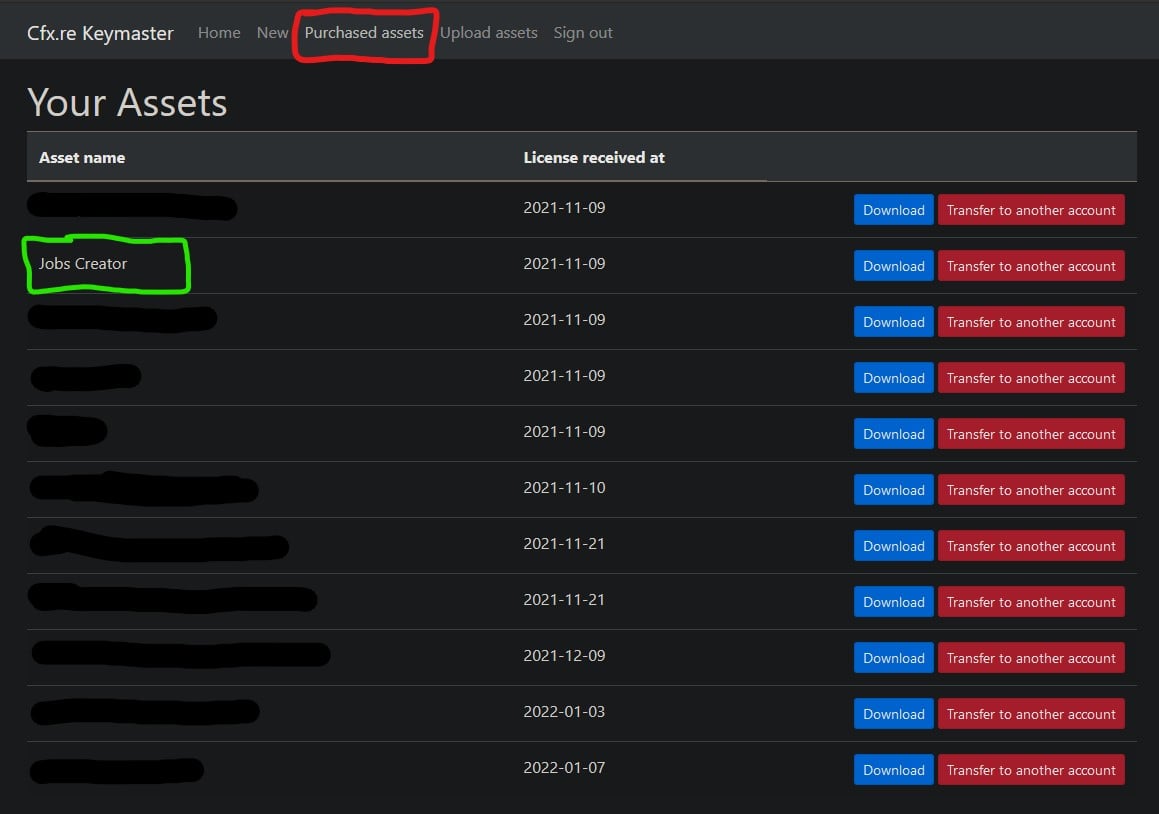
Verify if the account you are logged in with on FiveM Portal owns the script(s) you are trying to use. If the script is not there, it means you used a different account on Tebex, or you have transferred the script to another account.Example with Jobs Creator script
Jobs Creator ownership example
5

Verify the server key owner

If the account you are using on FiveM Portal owns the script(s), verify if the server key your server is using is generated by the same account.
Server key owner example

My server key is generated by someone else that’s not me, what can I do?

You have 2 options:
  • Generate a key from your account and use it
  • Transfer the script ownership to the other account

How to transfer the script to another account?

To transfer the script to another account, head to:FiveM Portal → **Assets **tab → Transfer to another account red button
cfx.re decided that scripts can be transferred only 1 time, so you won’t be able to transfer the script again.

ZAP-Hosting server key

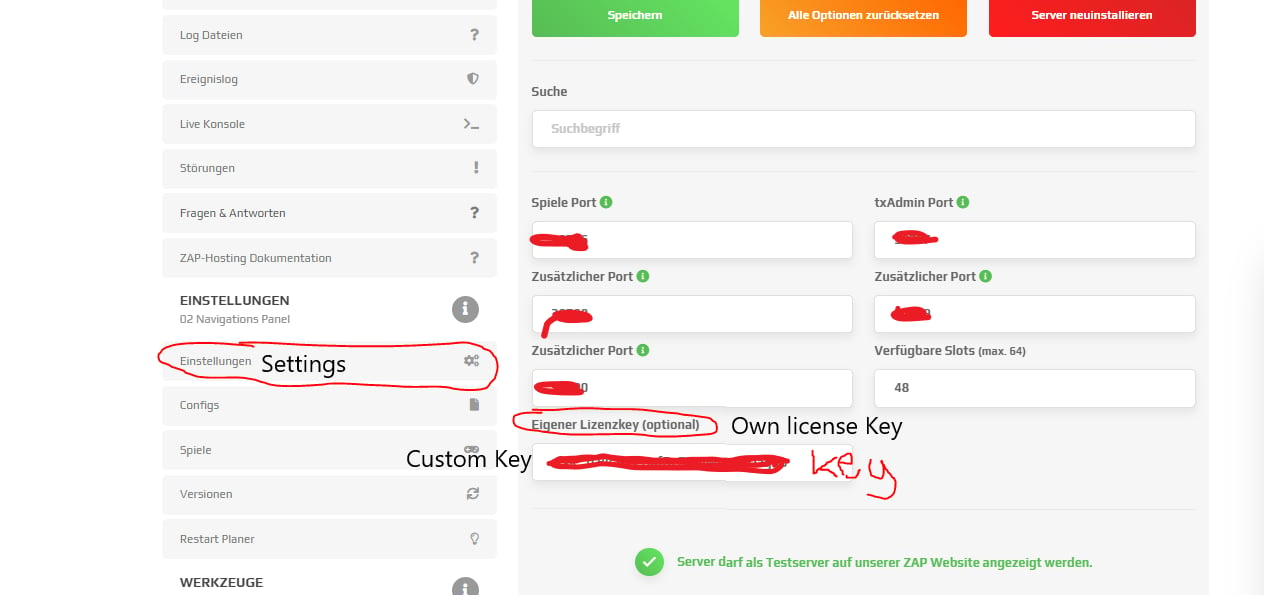
If you are using a Zap-Hosting server, you do not have to enter your server key in server.cfg, but directly on their website.Here is the official ZAP Hosting guide for it.Example screenshot:
ZAP Hosting license key example

I followed all steps but nothing is working, what can I do?

If you have followed all steps, then you just have a virus in your server. Try creating a clean server with only the default framework scripts and jaksam’s scripts.

How to verify if I have a virus in my server?

Open the file mentioned by jaksam’s script with notepad, and scroll down to the bottom. If there is partially readable code (for example local...), that’s a virus added by something else, because normally the entire file would be encrypted. In this case, you’ll have to solve that issue before being able to use any script.