> ## Documentation Index
> Fetch the complete documentation index at: https://docs.jaksam-scripts.com/llms.txt
> Use this file to discover all available pages before exploring further.
# Installation
> Install Vehicles Keys on your FiveM server with ESX or QBCore, including optional default items setup.
The installation of the script is extremely easy.
## Requirements
* **ESX** or **QBCore**
* The [lockpicking script](https://github.com/baguscodestudio/lockpick) by [baguscodestudio](https://github.com/baguscodestudio/lockpick)
* On QBCore, the [`menu_default`](https://drive.google.com/file/d/1Ezz-d50NIKQZeZJ-RgyclvNG7qC4Nfu8/view?usp=sharing) script
Do **NOT** use FileZilla to upload the files, otherwise the script will **NOT** work.
Use [WinSCP](https://winscp.net/eng/download.php) instead.
Download the script and extract it in your resources.
Add the script in your auto start (example: `server.cfg`).
The script will **automatically** set up the database. In case it doesn't, you can manually run the files in the `vehicles_keys/sql/` folder.
Download and start the [lockpicking script](https://github.com/baguscodestudio/lockpick) *(credits to [baguscodestudio](https://github.com/baguscodestudio/lockpick))*.
### Adding the items — Optional
To add the premade items, you only have to run the file `vehicles_keys/sql/items_limit.sql` **or** `vehicles_keys/sql/items_weight.sql`, depending on whether your server uses limit or weight.
The latest version of ESX uses **weight**.
If it doesn't work, be sure to use the latest official version of ESX with the required dependencies.
Download the script and extract it in your resources.
Add the script in your auto start (example: `server.cfg`).
The script will **automatically** set up the database. In case it doesn't, you can manually run the files in the `vehicles_keys/sql/` folder.
Download and start the [lockpicking script](https://github.com/baguscodestudio/lockpick) *(credits to [baguscodestudio](https://github.com/baguscodestudio/lockpick))*.
Download and extract the [menu\_default](https://drive.google.com/file/d/1Ezz-d50NIKQZeZJ-RgyclvNG7qC4Nfu8/view?usp=sharing) script in your resources, **without renaming it**, and add it to your auto start (example: `server.cfg`).
### Adding the items — Optional
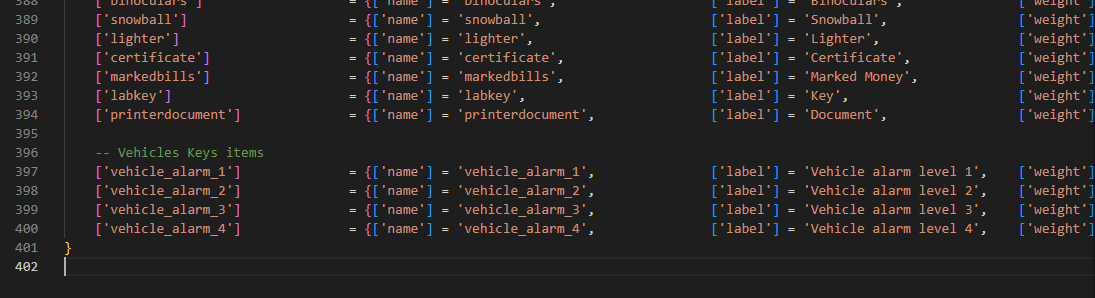
To add the new items, edit the `qb-core/shared/items.lua` file and add the following code at the bottom of the table:
```lua theme={null}
-- Vehicles Keys items
['vehicle_alarm_1'] = {['name'] = 'vehicle_alarm_1', ['label'] = 'Vehicle alarm level 1', ['weight'] = 500, ['type'] = 'item', ['image'] = 'your_image.png', ['unique'] = false, ['useable'] = true, ['shouldClose'] = true, ['combinable'] = nil, ['description'] = 'Vehicle alarm level 1'},
['vehicle_alarm_2'] = {['name'] = 'vehicle_alarm_2', ['label'] = 'Vehicle alarm level 2', ['weight'] = 500, ['type'] = 'item', ['image'] = 'your_image.png', ['unique'] = false, ['useable'] = true, ['shouldClose'] = true, ['combinable'] = nil, ['description'] = 'Vehicle alarm level 2'},
['vehicle_alarm_3'] = {['name'] = 'vehicle_alarm_3', ['label'] = 'Vehicle alarm level 3', ['weight'] = 500, ['type'] = 'item', ['image'] = 'your_image.png', ['unique'] = false, ['useable'] = true, ['shouldClose'] = true, ['combinable'] = nil, ['description'] = 'Vehicle alarm level 3'},
['vehicle_alarm_4'] = {['name'] = 'vehicle_alarm_4', ['label'] = 'Vehicle alarm level 4', ['weight'] = 500, ['type'] = 'item', ['image'] = 'your_image.png', ['unique'] = false, ['useable'] = true, ['shouldClose'] = true, ['combinable'] = nil, ['description'] = 'Vehicle alarm level 4'},
['vehicle_transfer_contract'] = {['name'] = 'vehicle_transfer_contract', ['label'] = 'Vehicle transfer contract', ['weight'] = 500, ['type'] = 'item', ['image'] = 'your_image.png', ['unique'] = false, ['useable'] = true, ['shouldClose'] = true, ['combinable'] = nil, ['description'] = 'Used to sell your vehicle to someone'},
```
 You are ready to go! Enjoy the script 😁
## Verification
\[TODO: INFORMATION NEEDED] No in-game check for a successful install is documented yet for Vehicles Keys.
## Optional step
After the database is set up correctly, you can delete the files in `vehicles_keys/sql/` folder, so the script won't try to set up the database each time you start it.
## Related topics
- [Installation](/jaksam-inventory/installation.md)
You are ready to go! Enjoy the script 😁
## Verification
\[TODO: INFORMATION NEEDED] No in-game check for a successful install is documented yet for Vehicles Keys.
## Optional step
After the database is set up correctly, you can delete the files in `vehicles_keys/sql/` folder, so the script won't try to set up the database each time you start it.
## Related topics
- [Installation](/jaksam-inventory/installation.md)